

Generally, A WhatsApp account can only be verified with one registered phone number. In case of a dual SIM phone, note that you still have to choose one number to verify with WhatsApp.
In this case, WhatsApp brings in what is known as the WhatsApp companion mode.
This companion mode is now available to all users. So, if you are interested in knowing how to use the same WhatsApp number on more than one phone, just follow up as we show you.
What to know first: For now, the WhatsApp Companion Mode only supports that the second device is an android. That means you cannot use an iOS device as the secondary device as of writing this article. However, one can still use an iOS device as a primary device. Also, Android tablets support the new companion mode as well.
Step 1: Install WhatsApp on the Secondary Device
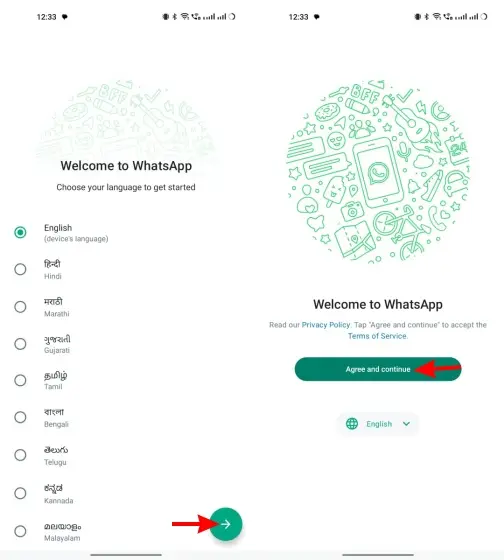
Install WhatsApp on your secondary phone. On the first screen, choose your language and tap the arrow to proceed. After which u should tap on the “Agree and continue” button to move to the login screen.
Step 2: Link WhatsApp to Existing Account
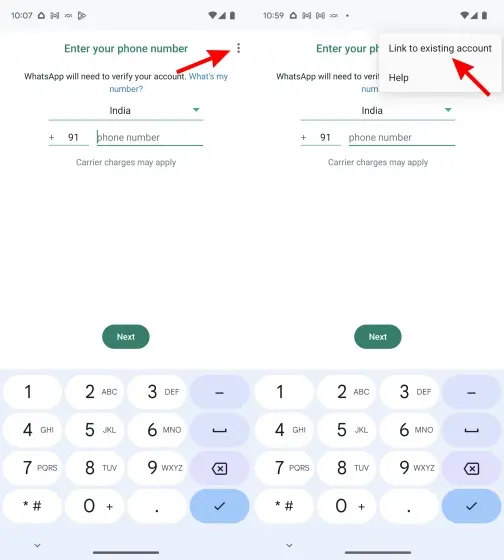
- You will be prompted to enter your telephone number to login. However, just ignore that and tap the ellipsis icon (three vertical dots) at the top right. Then, select the “Link to existing account” option.
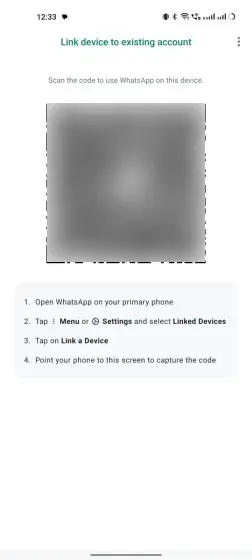
- A QR code will appear, similar to WhatsApp Web, on your secondary device. This is the QR code we will have to scan using our primary device.
Step 3: Open Linked Devices on Primary Device
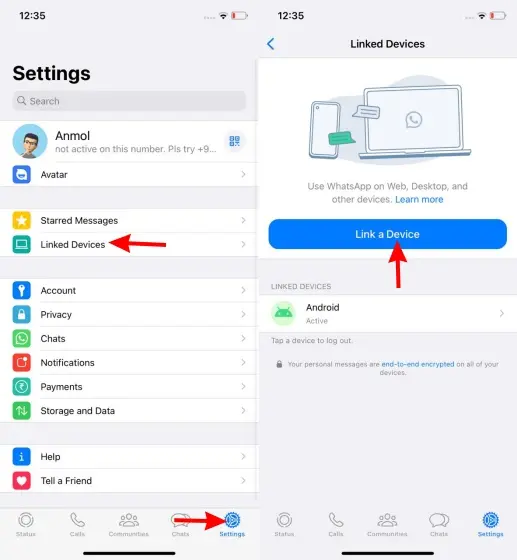
Move back to your primary phone. Let’s consider an iPhone for this tutorial but the steps are mostly the same. Let’s see how the “Linked Devices” section in WhatsApp can be accessed.
- On iOS, go to “Settings” from the bottom navigation bar and select “Linked Devices”, then tap the “Link a Device” button to start.
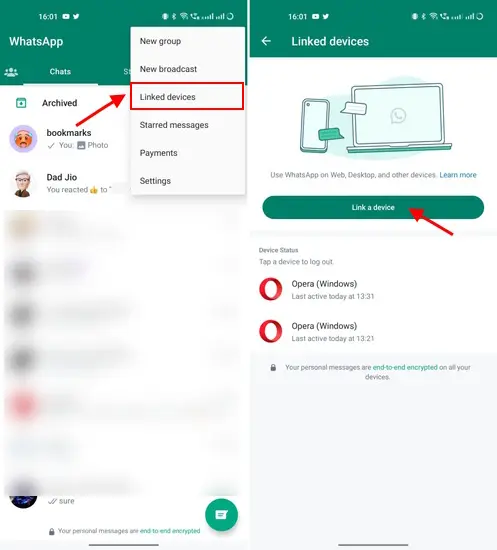
- On your secondary device, tap the ellipsis icon(three vertically aligned dots) at the top right and select “Linked Devices.” Then, tap the “Link a device” button on the next page to begin the process to use same WhatsApp account on two phones.
Step 4: Scan QR Code on Secondary Device
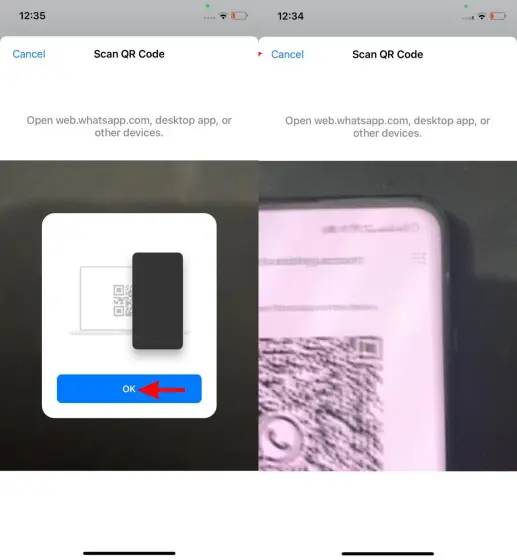
The QR code scanner will open up on your main device(primary device). Tap on “OK” and scan the QR code displayed on your secondary device to successfully log into the WhatsApp account of the primary phone.
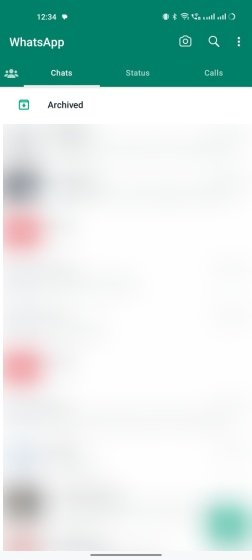
WhatsApp will now display on both your primary and secondary devices. You can use them without any issues whatsoever, and both devices will be able to work like independent devices. That means, even if internet access is lost on your primary device, you will still be able to use WhatsApp on your secondary device without problems.
Repeat the above steps to log into multiple phones if need be
Please don’t use the above technique for criminal purposes.